Upload Asset
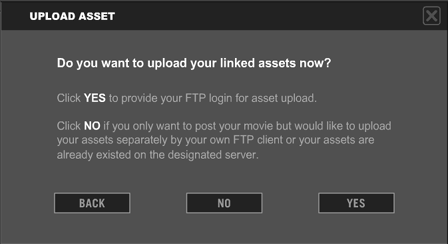
You have two options for uploading movie assets. You can upload assets from within Comixware drawing files directly from your Comixware Assets folders; or you can gather and upload your assets manually by an external FTP client. Either way is fine as long as you have an asset URL established before the upload. However, upload manually probabally gives you more control over individual file's updating process.
Once you specified an URL for your movie assets the Program would ask you whether you want to upload these assets now (see sample screen above).
Click YES if you want Comixware to do the asset upload for you. You will be proceeded to the next UPLOAD interface.
Click NO
if: a. You want to upload your assets manaually by an external FTP client. AND/OR b. Your assets are already existed on the designated server and the current post involves "compositional" change only. Once you answer NO the Program will upload your movie with designated URL(s) accordingly. But it will not upload actual asset files to the designated server. You will have to upload them separately by your own FTP client.
FTP Login
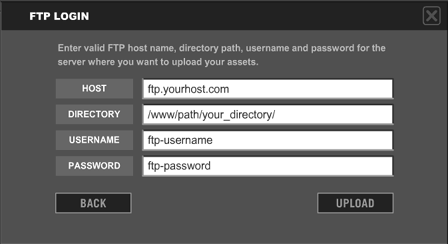
If you chose to upload your assets NOW, you will be taken to FTP LOGIN screen (see sample screen above) where you are to enter the following server details:
Host
This is to enter your FTP host name. The format for FTP host is usually like this: ftp.yourhostname.com
Directory
This is to enter the server path to the web directoy where you are to store your assets. The format for a web directory path may look something like this: /www/gallery/your_movie_title/
Username
This is to enter your FTP Username.
Password
This is to enter your FTP User password.
All fields on FTP LOGIN screen are required. Once you filled them out, click UPLOAD to start uploading process. You'd see a PROCESSING screen with a Yingyang symbol turning. This means the Program is logging in your FTP account and doing cross check between local and server files to determine an upload list. Only those assets not existed on server will be uploaded. The Program will also check if any existed server file has been updated locally. If yes, the newer local copy will be added to the upload list. This cross checking process would take a while to complete. Once it's done, you'd see an upload progression screen. This means the actual upload is started.
Notify
Friends
Upon
a successful post of your movie, you have the option to notify your
friends or colleagues about your post on the spot. Just click on the EMAIL
button on the MOVIE POSTED screen that follows the
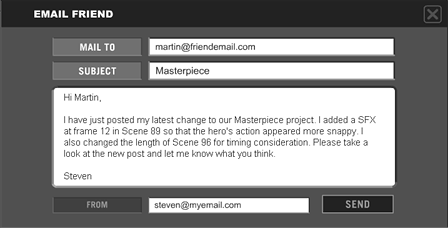
post. This will take you to an internal email client where you can compose
and send an email message to your friend (see sample screen below). Note
that the SUBJECT field is default to your movie
title and the FROM field is default to your registered e-mail
address. But you can change them to any subject matter or sender address.
 Gallery
> Posting Mode > Upload Asset
Gallery
> Posting Mode > Upload Asset 

